


.svg)


Create Custom Tables Your Projects, Your View
Clarc's Custom Tables let you create personalised project views that fit your workflow. Organise key project information, automate task management, and keep your team aligned with flexible, real-time project data.
.svg)
Build project views that work the way your team works.
.png)
Managing projects often means keeping track of a lot of moving parts—tasks, deadlines, team members, project updates, and key information that changes throughout the design process.
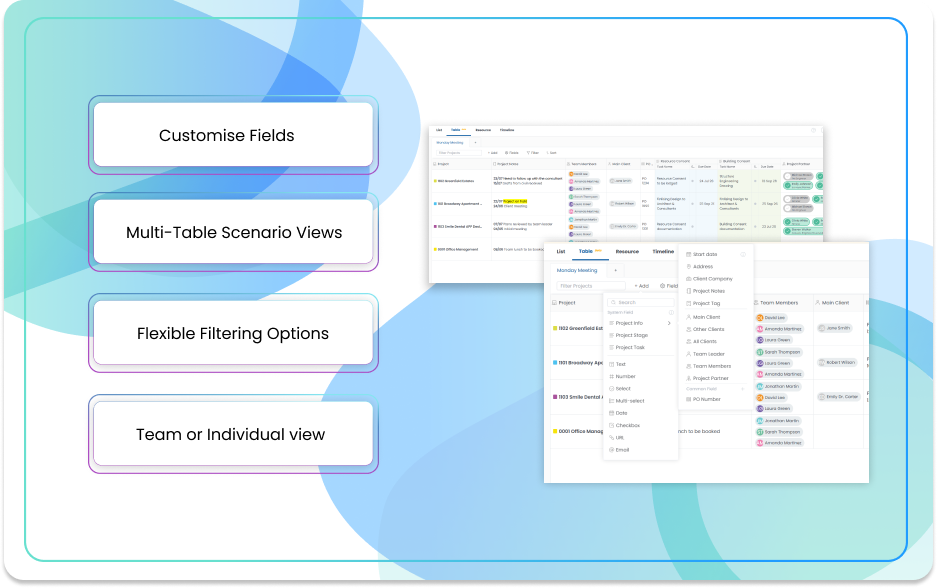
With Clarc’s new Custom Tables feature, you can create tailored views that bring the information you need together in one place, helping you stay organised and in control. Bring together tasks, due dates, members, tags, multi-select fields, notes, and more in a single, fully customisable table.
Whether you need a high-level project overview, a detailed task tracker, or a quick snapshot for your next meeting, you can create a view that works for your workflow.
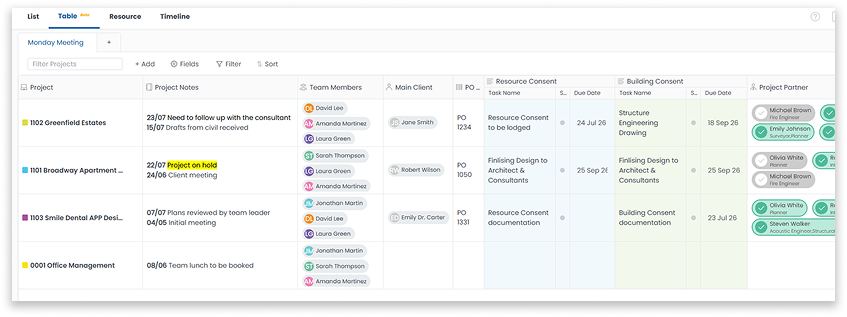
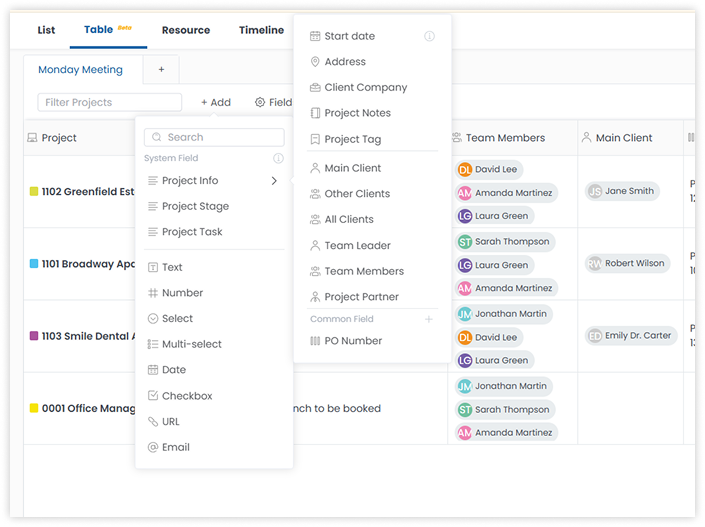
You can add as many fields as you need to create a table that is tailored to your workflow. Custom Tables supports two types of fields: System Fields and Custom Fields.
System Fields connect directly to your project data, allowing you to display and manage real-time information such as project addresses, clients, tasks, due dates, team members, and project partners. Any updates made through these fields are synced with your project, ensuring your information stays accurate and up to date.
For additional flexibility, Custom Fields allow you to add display-only information to suit your specific needs. Choose from options including text, multi-select, checkboxes, dates, and URLs to create the perfect overview for your workflow.
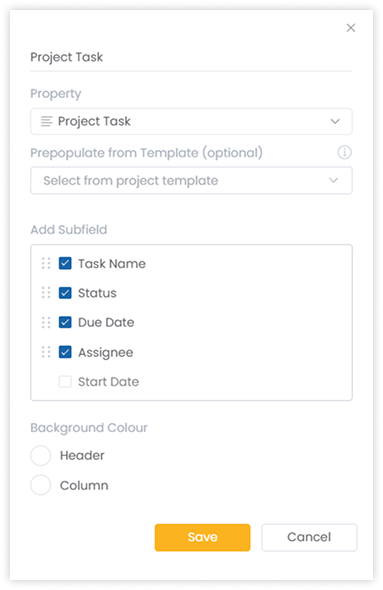
Display project tasks in your Custom Table to quickly view key details such as task names, status, due dates, and assignees. Keep track of milestones, review progress, and update tasks directly during meetings to keep projects moving forward.
You can also prepopulate tasks from your project templates, saving time by automatically adding the relevant tasks to your table instead of selecting them manually for each project.
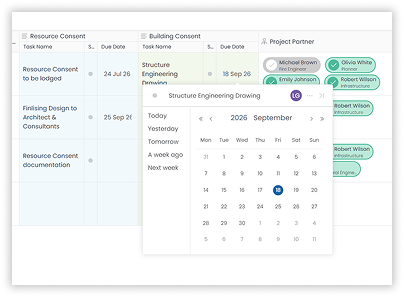
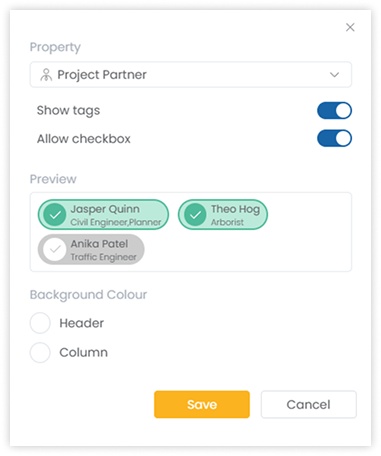
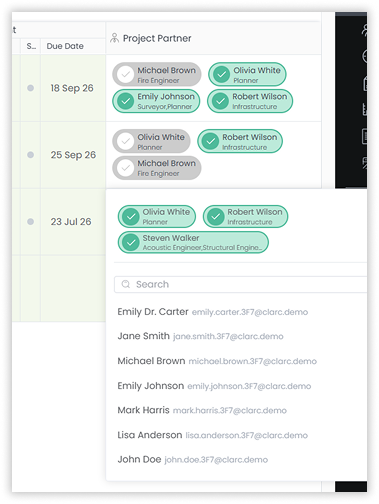
Selecting project partners allows you to use checkboxes to monitor completed tasks, making it easier to track subcontractor progress and stay up to date throughout the project lifecycle—all within a single view.
The note field supports smart text, allowing you to create more structured and visual notes to capture important project details.
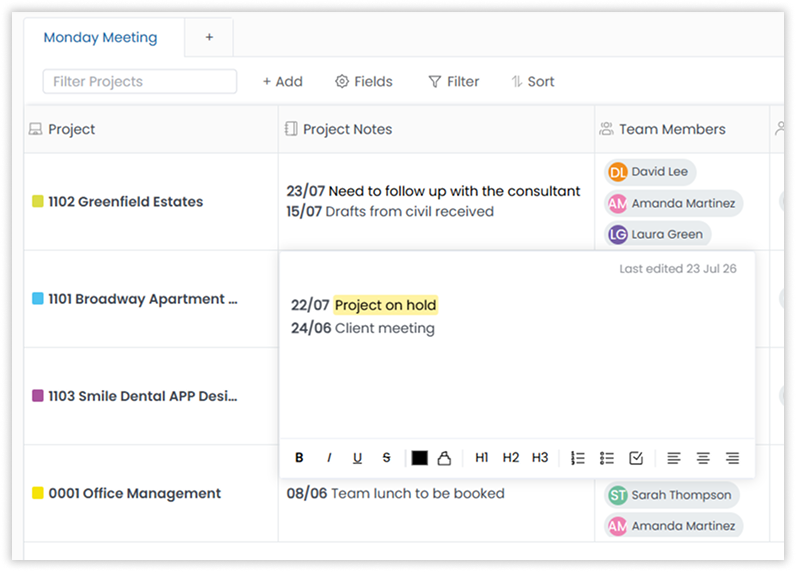
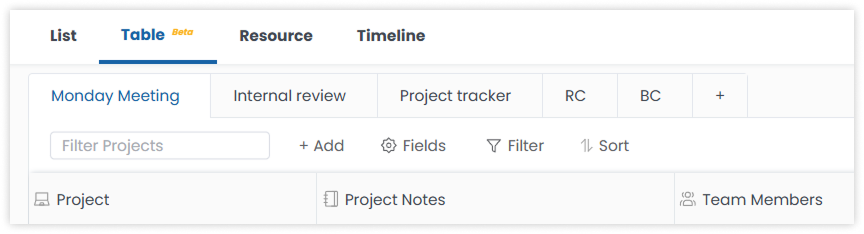
More importantly, you can create multiple tables to suit different workflows and office scenarios—Whether you’re preparing for a client update, running an internal review, or managing your own workload, Custom Tables help you spend less time organising information and more time moving projects forward.
%201.png)


Read More
